





Auto Email for Booking Data Function and Analytics Dashboard

Analytics-Dashboard-and-Booking-Data-Function

Not only does Deliveree bring you affordable delivery service, we are determined in developing advanced logistics management systems for you. Today, we would like to introduce our data functions which you can utilize to manage your business and personal deliveries in the most efficient way.

Auto Email for Raw Booking Data

You can access your booking data more conveniently by setting up the auto email to receive raw booking data in Excel format on a daily, weekly or monthly basis. The data includes pickup date, delivery locations, delivery distance, vehicle type, cost details and timestamps related to the booking (e.g. time of pickup, time of delivery completion and waiting time).

The raw booking data can be used for transaction review and logistics data and key operational performance analysis. You can add multiple email addresses to receive the auto email.

How to Setup Auto Email for Raw Booking Data

1. Login to your user account on the Web App

2. In the “Manage Bookings” menu, select “Single”
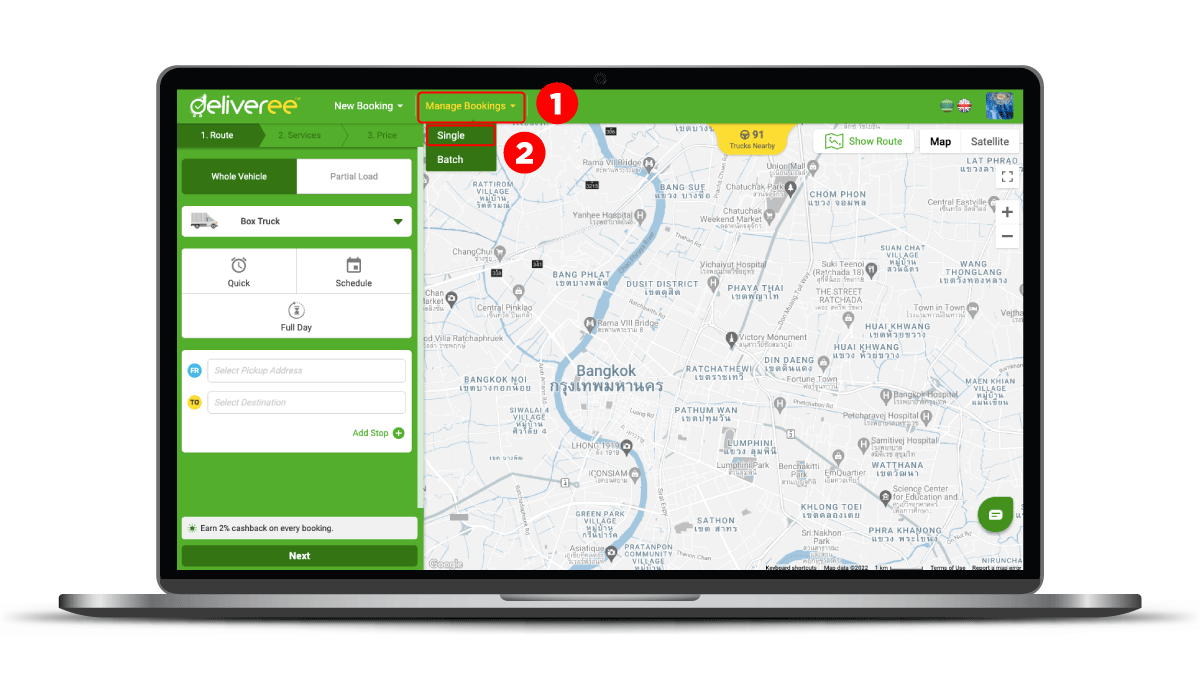
EN-Step-1

3. Click “Export” and select “Auto Email for Booking Data”
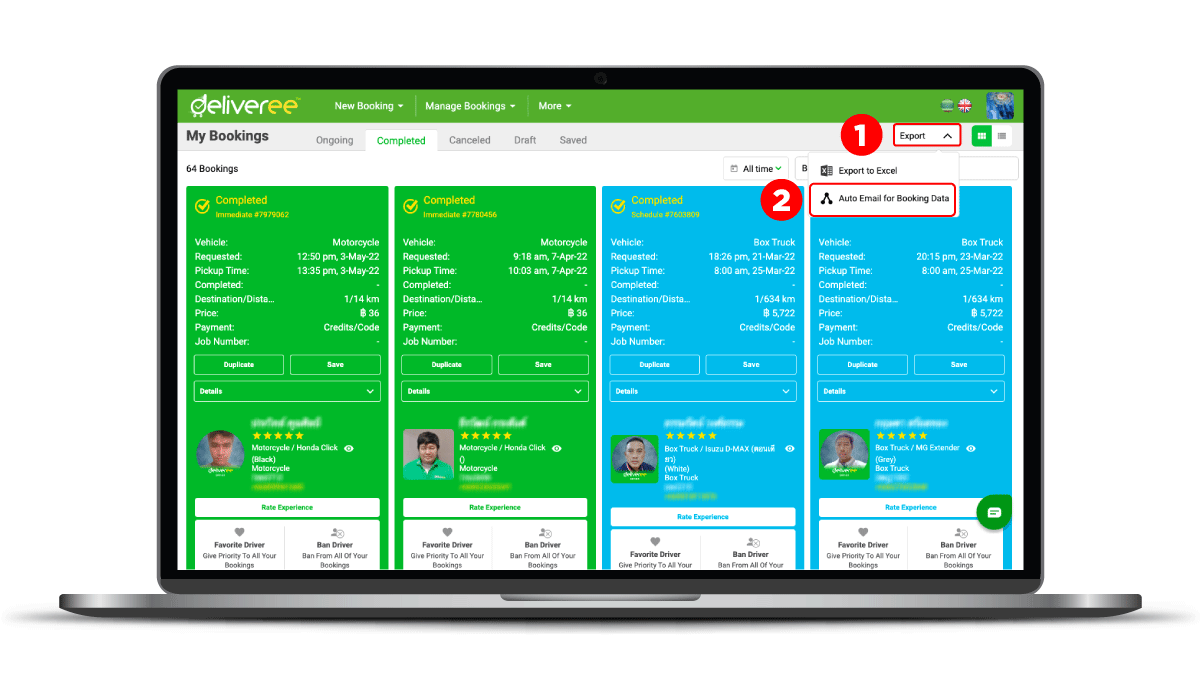
EN-Step-2

4. Select the frequency in receiving the automatic email between monthly, weekly and daily. Input the email address you wish to receive the data and click “Add”. You can add multiple emails. Once you have input all emails, click “Save”.
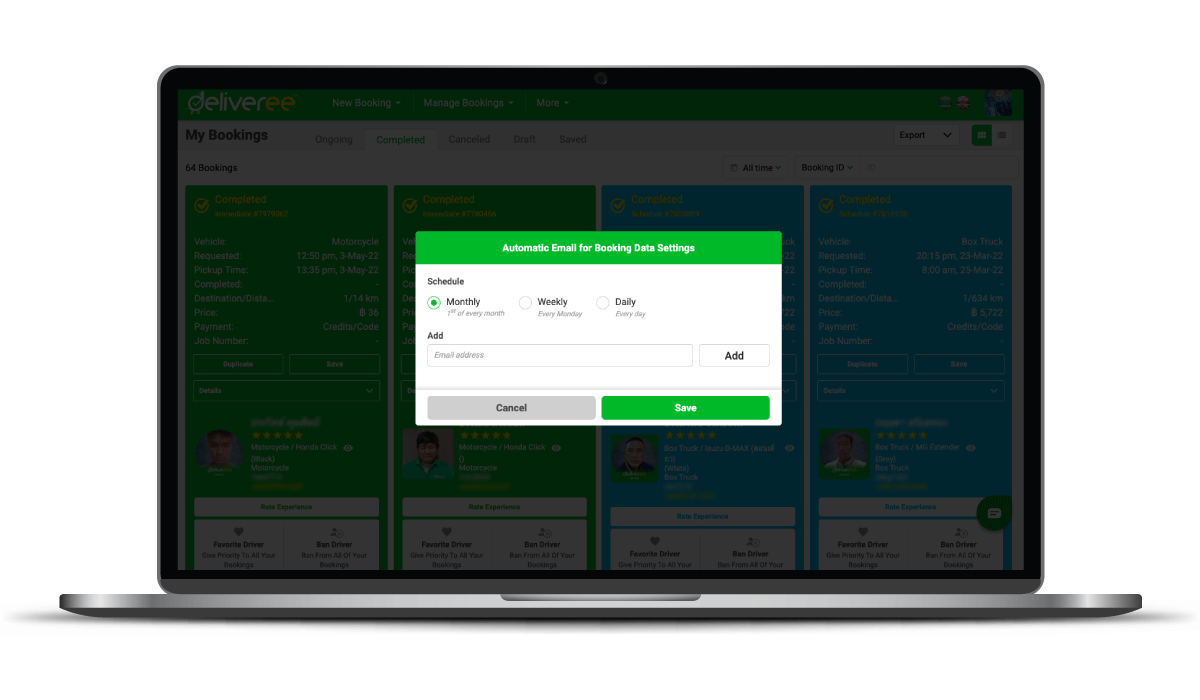
EN-Step-3

Analytics Dashboard

Deliveree provides an analytics dashboard that presents your logistics data such as your booking volume, vehicle type breakdown and cost in illustrative charts. The dashboard can help you to easily analyze your logistics activity and provide information to manage your deliveries more efficiently.

Access the analytics dashboard by selecting “Analytics” on the “More” menu.
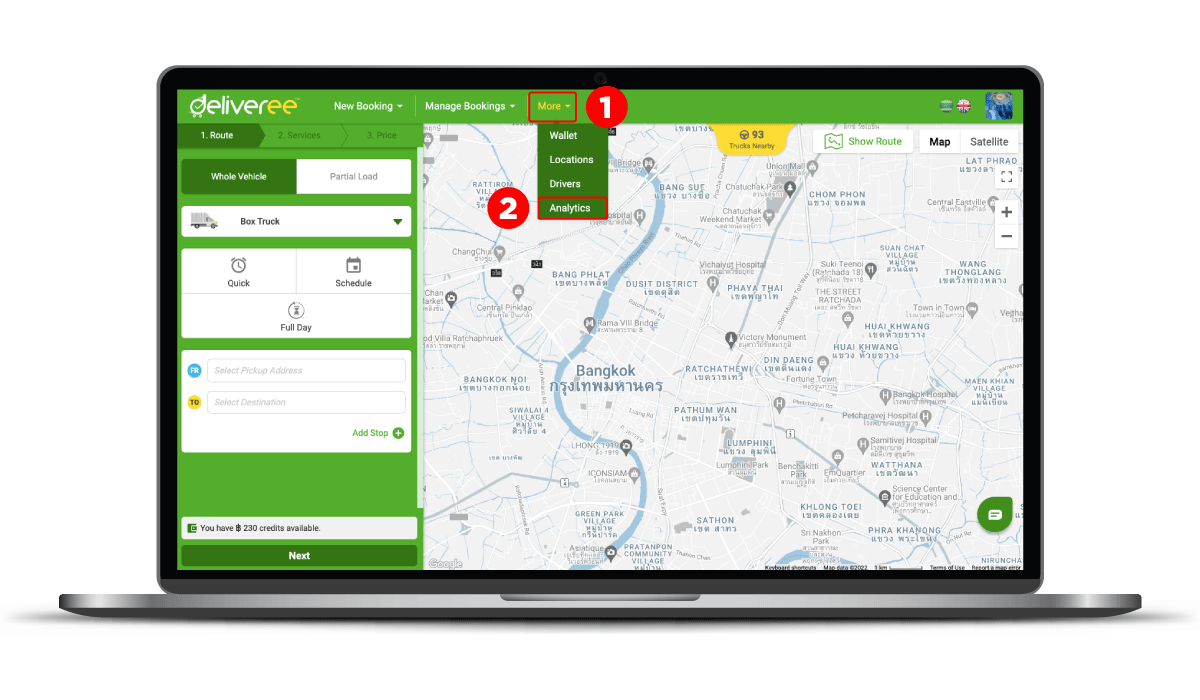
EN-Step-4

Booking Data in the Analytics Dashboard

The analytics dashboard provides you with booking data in various graphs such as booking volume, cost, vehicles used, employee activities (for business accounts) and driver acceptance stats. Choose to view the booking data in specific time periods in the action buttons on the upper right-hand corner. The dashboard report can be downloaded in a PDF file using the “Export” button. You can also set up to receive auto email of the dashboard report on a daily, weekly or monthly basis by selecting the “Automatic Report Settings”.
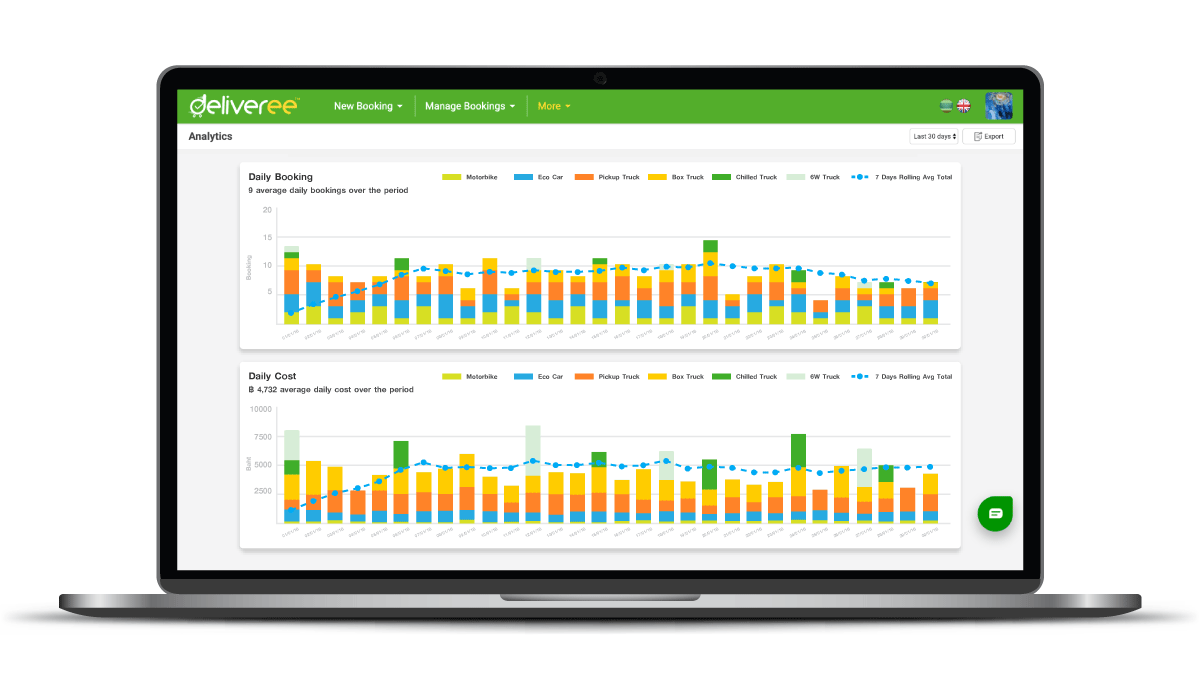

EN-Step-5

Smart Load Planner

Smart-Load-Planner

The Smart Load Planner tool helps businesses manage orders more conveniently and efficiently by bundling orders and creating routing while selecting the best suited vehicle type and most-optimized number of vehicles needed for your deliveries. All customers can utilize the Smart Load Planner free-of-charge on our Web App.

Benefits of the Smart Load Planner

  • Manage multiple orders with multiple delivery locations
  • Arrange orders and optimize number of delivery vehicles for the best cost efficiency
  • Create batch bookings without having to manually book each vehicle
  • Easy to use on Web App and free of charge

How to Access the Smart Load Planner

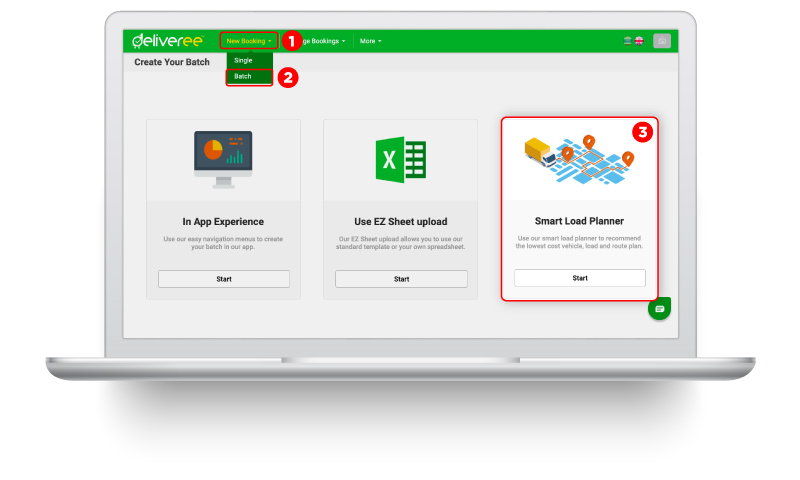
Login to your user account on Deliveree’s Web App and in the “Batch” menu click “Start” on the Smart Load Planner.

Smart-Load-Planner_en

Batch Booking with the Smart Load Planner in 5 Easy Steps

1. Download the load planner template and input order details such as the order number, the goods weight and size, number of pieces per order and drop-off locations. Upload the spreadsheet to the Smart Load Planner, input the pickup location and select the pickup date.

2. Map the spreadsheet columns with Deliveree’s required fields and select your vehicle type preferences. 

    • Consider all vehicles – the system will use all available vehicle types to optimize your delivery orders.
    • Consider only specific vehicles – the system will only use your selected vehicles to optimize your delivery orders.

3. Once the spreadsheet is uploaded, your load plan is shown with the list of vehicle bookings, vehicle type, order arrangement and route for each vehicle, and ETA time to reach the final stop in each booking. In this step, you can set the desired time you want the deliveries to be completed and change the vehicle type to a larger vehicle. Then click “Next”.

4. In the Validate step, you can review delivery details of each vehicle booking. You can change the preferred time type and add extra service in this step. Then click “Next”.

5. Review the booking details and price summary before clicking “Confirm Batch”.

Customers can check booking status in the “Ongoing” tab in the “Batch Alert” menu.

Business customers can join Deliveree’s Business Program to access services specific to business deliveries such as Document Return (POD), Cash on Delivery (COD), monthly invoice with credit term and goods insurance up to 750,000 Baht. Get more information or apply for Business Program at www.deliveree.com/th/en/logistics-business/

Save More with 2% Cashback for Every Delivery Made with Us

Cashback-Feature-Promotion

Deliveree launches a special 2% cashback promotion for every completed bookings from now until July 31, 2022. Cashback credits can be used in your next whole vehicle booking at any time.

How to Get Cashback Credits

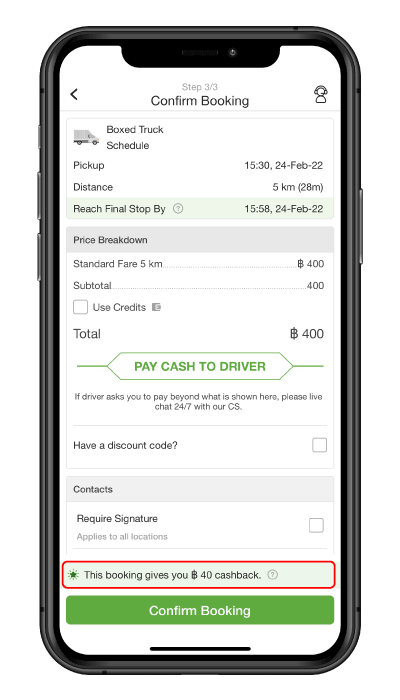
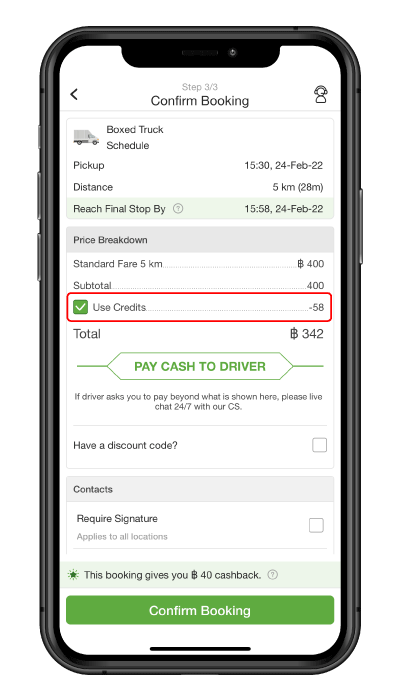
In the booking step 3, the app will display a tab with cashback amount from that booking. Once the booking is completed, cashback credits will automatically be top-up to your wallet.

How to Get Cashback Credits

How to Check Cashback Credits

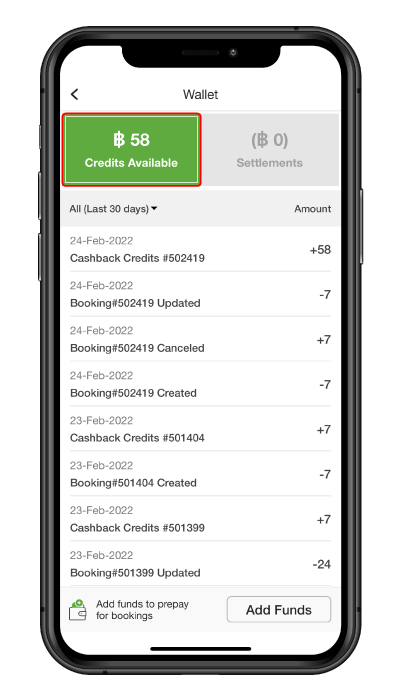
In the Wallet menu, the tab “Credits Available” will display the amount of credits available which includes the top-up credits by customer and the cashback credits.

How to Check Cashback Credits

How to Use Cashback Credits

In the booking step 3, customers can choose to use cashback credits by ticking the box “Use Credits”. In the case that the booking fee exceeds the credits, the amount the customer has to pay in cash to the driver is shown in the “Total”.

How to Use Cashback Credits

Cashback Credits Terms & Conditions

  • 2% cashback is calculated from distance-based and full-day booking fee, excluding extra service and other fees.
  • Cashback credits have no expiry date.
  • Cashback credits cannot be exchanged for cash.
  • Deliveree reserves the right to change the terms and conditions without prior notice.